8Notes8.2
Publisher Description




Multimedia notes, folders, tags, rating, colour tags, location, web, Spotlight, iCloud, 3 user fields, speech synthesiser & 12 queries. Dark Mode.
No Ads. Free!
8Notes joins the 8Apps suite of productivity apps sharing the same elegant simplicity design philosophy.
Organise your Notes in Folders with no limitations. Each Note can be added from the Notes table or the Folder views. Each Note has attributes such Title, Folder, Text, Location, Website, Color Tags, Stars Rating & Tag/Icon. You can also designate 3 user-defined field labels and values (label it anything you like and enter its value). You can Copy any text from the Note Details view.
Activate the media menu and add UNLIMITED photos, audios and videos. Add your note to Spotlight for quick search. Share your note on your favourite social media platform (Facebook, Twitter, etc). Backup and restore from iCloud with complete security and privacy.
o Start with Folders.
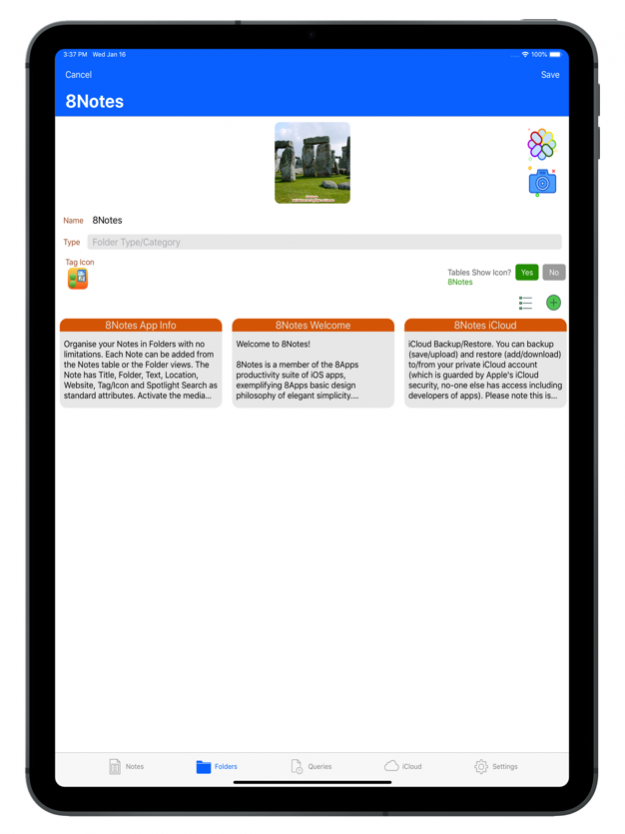
Add your categories such as: Books, Quotes, Recipes, Facebook Posts, Twitter Tweets, etc. You can attach a photo/image to the folder for a colourful presentation on the Folders table or details views. On the Folders table view, tap a folder row to show that Folder Notes or swipe to Edit the folder details.
o Add Your Notes.
Title and Folder are required attributes to allow classification and links to any forthcoming photos, audios and videos. You can add a tag/icon and include/exclude in Spotlight search. Save the new Note record to activate the Media Menu (touch the 'hamburger' menu button on the left-hand top corner). Add as many photos, audios and videos per Note as you like. No limits. Then, share on any social media platform.
o Choose Your Tags.
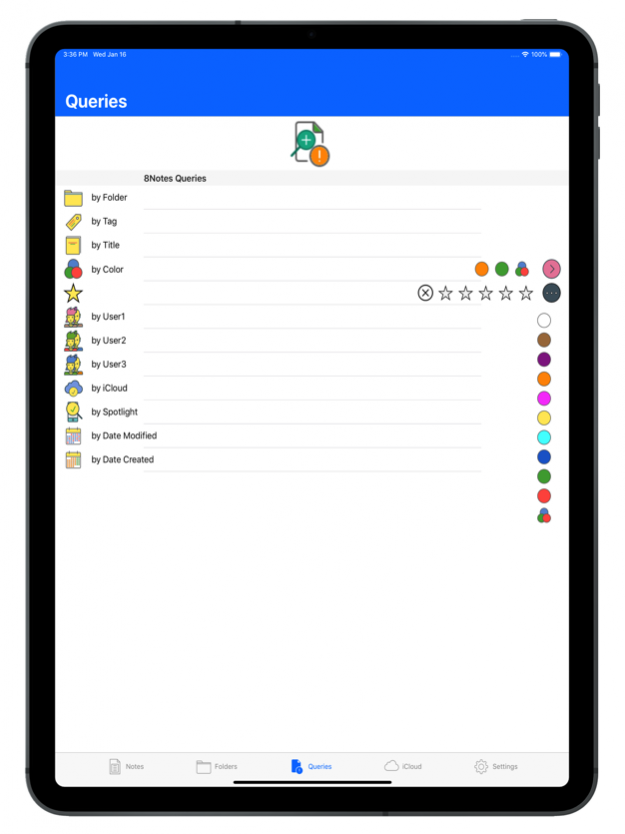
For each Note you can choose an icon Tag, Stars rating (0 to 5) and/or Colour/Color sets (Any combination of 3 colors, including no colour/color). These options are all reflected in Queries, giving you (almost) unlimited choice of tags/stars/colours to classify your notes.
o Define Your User Fields.
For each Note you can define your own 3 user fields (User1, User2 and User3). You can enter any text for the label (e.g. instead of ‘User1’, opt for ‘eBooks’/‘Yoga’, etc) and enter the field value (e.g. ‘7 Habits’, /‘Bharadvaja's Twist’). In Queries, you can them see the User1 lists sorted by your user-defined labels.
o View Your Notes.
The Notes Table shows Notes by Date Created descending (like the default iOS Notes app) and allows search by Note Title or Folder Name. Touch/tap the Sort Menu button (left-hand top corner) and sort by Folder, Title or Tag. You can then select a Note record to see the Note Details. The Note Details view has buttons that allow viewing of/listening to each Note photos, audios and videos.
o Edit Your Notes.
On the Note Details view, the left-hand top blue icon is the Edit button, which shows the Note fields and allows editing of any and all attributes. There is a FullView feature which expans the Text/Notes field into the whole screen, if you prefer, but always check the main Edit screen and SAVE before you leave.
o Review Settings.
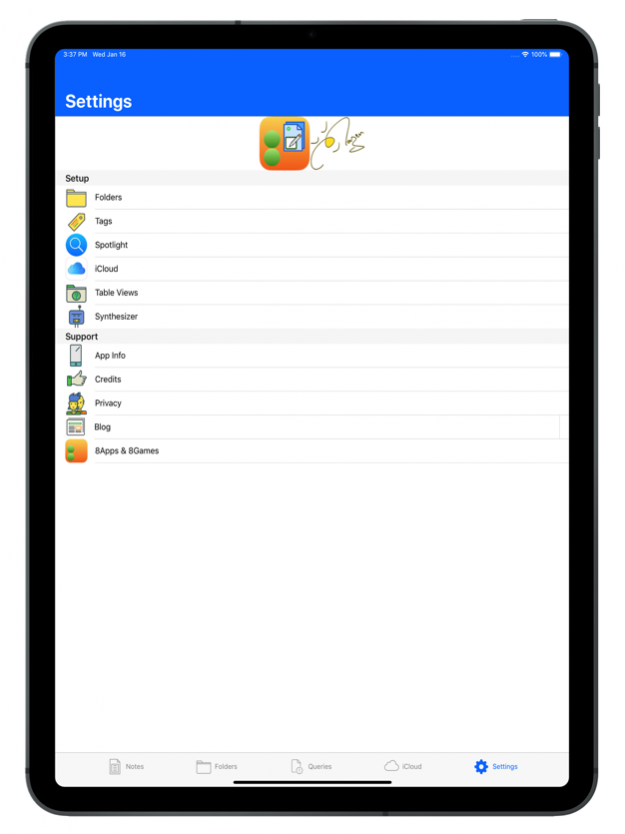
Review app info in Setup & Support. You can change the Folder Name (which is then reflected in all Notes grouped within this folder) or Delete a Folder (which deletes all its Notes; be careful here!). The Folder and Spotlight Maintenance is always preceded by a Confirmation Dialogue (pop-up screen), by design, for security reasons to ensure the folder/spotlight is changed/deleted safely. Settings Reset Data Integrity is recommended after installing a new app release/version or if you are updating from an older release/version to ensure the new data structrues are all catered for.
o iCloud Backup/Restore.
You can backup (save/upload) and restore (add/download) to/from your private iCloud account (which is guarded by Apple's iCloud security, no-one else has access including developers of apps). Please note this is not a real-time multi-device synch feature (yet), but it allows you to backup your notes (all text and 1 image/photo, no audio/video yet) safely and restore them in the same or other iPhone/iPad in future as needed.
Explore, Enjoy!
Sep 20, 2020 Version 8.2
V8.2
o Updated for iOS 14
o Optimised for latest development environments (Xcode 12 and Swift 5.3)
o Fixed Settings:iCloud download of notes attributed texts
About 8Notes
The company that develops 8Notes is Mazen Kilani. The latest version released by its developer is 8.2.
To install 8Notes on your iOS device, just click the green Continue To App button above to start the installation process. The app is listed on our website since 2020-09-20 and was downloaded 2 times. We have already checked if the download link is safe, however for your own protection we recommend that you scan the downloaded app with your antivirus. Your antivirus may detect the 8Notes as malware if the download link is broken.
How to install 8Notes on your iOS device:
- Click on the Continue To App button on our website. This will redirect you to the App Store.
- Once the 8Notes is shown in the iTunes listing of your iOS device, you can start its download and installation. Tap on the GET button to the right of the app to start downloading it.
- If you are not logged-in the iOS appstore app, you'll be prompted for your your Apple ID and/or password.
- After 8Notes is downloaded, you'll see an INSTALL button to the right. Tap on it to start the actual installation of the iOS app.
- Once installation is finished you can tap on the OPEN button to start it. Its icon will also be added to your device home screen.
Program Details
System requirements
Download information
Pricing
Version History
version 8.2
posted on 2020-09-20
20 Sep 2020 Version 8.2
V8.2
o Updated for iOS 14
o Optimised for latest development environments (Xcode 12 and Swift 5.3)
o Fixed Settings:iCloud download of notes attributed texts
version 8.2
posted on 2020-09-20
Sep 20, 2020 Version 8.2
V8.2
o Updated for iOS 14
o Optimised for latest development environments (Xcode 12 and Swift 5.3)
o Fixed Settings:iCloud download of notes attributed texts
version 8.1
posted on 2020-05-31
May 31, 2020 Version 8.1
V8.1 June 2020 Hello iOS 13 Dark Mode!
This is a highly recommended update, especially for iPad users:
o Full Dark Mode coverage (now includes all Settings menu options & all app alerts/popups)
o All new photos are now PNGs (which show transparency, if any). This may increase app size, but it's worth it!
o Extensive UI enhancements and bug fixes throughout the app ensuring noticeable stability and intuitive interface.
version 8.0
posted on 2020-05-25
May 25, 2020 Version 8.0
V8.0 May 2020 Hello Dark Mode!
o Full coverage Dark Mode (Note text in Add, Edit, Details, Full View and Scrolls)
o New Settings View Options Scroll Animations: Circle, Roll, Pitch, Yaw (in addition to Cube & Scale)
o Fixed Media Menu for iPad
version 7.2
posted on 2020-05-21
May 21, 2020 Version 7.2
V7.2 May 2020
o Update to iOS 13 with Dark Mode
o Update to Latest Development Platforms (Xcode 11, Swift 5)
o Misc Bug Fixes and UI Enhancements
version 7.1
posted on 2020-05-02
May 2, 2020 Version 7.1
V7.1 is iOS 13 ready!
- Updated to iOS 13 and the latest development platforms (Xcode 11 & Swift 5).
- Minor tweaks, but no new functionality.
version 7.0
posted on 2019-01-23
Jan 23, 2019 Version 7.0
V7.0 is a Major Update. Enjoy!
o NEW Note Rich Text Editor. You can now use the Bold, Italic and Underline options within the Note Text. Select/Highlight the required text, then choose the attributes from the pop-up menu (similar to default Notes app).
o New Notes and Folders Gallery (Collection) View. The Gallery view allows animated scrolling showing all Notes. You can control the scroll direction (horizontal or vertical) and the animation (Cube or Scale). Tap/touch the Note 'box' top Title or bottom IconsView to launch the Note Details view. Tap/touch inside the Note 'box' to scroll up/down.
o NEW Folder Edit View. The new view shows a horizontal scroll of all folder notes. Tap the ‘Add’ icon to add a new folder note. Tap ‘Table View’ icon to show the folder notes in a table view (as in V6). Tap any note image in the horizontal scroll to show note details.
o NEW Unlimited Tags. In Settings, maintain the pre-installed tags and add your own for an infinite variety of tags. You can also add a tag icon or image to your new tags.
o NEW Table View Settings. In Settings Table View you can choose:
oo Folders Table whether the default row selection behaviour is to show the Folder Edit or Folder Notes
oo Notes Table whether the default row selection is to show the Note Edit or the Note Details
o NEW Synthesizer Options: In Settings, you can select Mezo’s synthesizer Rate, Pitch, Volume and Voice (language).
o NEW Queries Colors and Stars. The Stars now allow queries for all Stars or a specific nStart. The Colours now show a pop-up Colour Menu for faster and easier selection of colours.
